


How To Update Your Haptique RS90 Firmware (3GB Version)
Update via OTA to get the new factory firmware on your remote.
Overview
This guide walks you through updating your Haptique RS90 (3GB model) to the latest Android firmware using over-the-air (OTA) update. It is the same firmware that new RS90 remotes now ship with from the factory.
Firmware Details
| Operating System | Android 12 (customized for Haptique) |
|---|---|
| Firmware Build | haptique_rs90_001_20261027 |
What’s New
- Unwanted Android apps removed. The system is cleaner and lighter, with only what your remote needs.
- Native Android volume works with +/−. The +/− keys are now the Android volume keys, and the channel ▲/▼ keys the page keys. Android’s own volume, and the volume in other apps on your remote (for example apps from the Aurora Store), now follow +/− as you’d expect. In the Haptique app every key works exactly as before; app 4.3 takes care of it. Home Assistant and MQTT automations keep receiving the same button numbers.
- Haptique 4 built in. The system now carries the Haptique 4 app (4.1) as its base app, instead of the older launcher. New users, and anyone who resets their remote to factory settings, start straight in the friendlier Haptique 4 experience, which then offers the latest version.
- One firmware for every RS90. This is the firmware new RS90 remotes ship with from the factory, so your remote runs exactly the same system as a brand-new one.
- Nothing to set up again. Your installed Haptique app, settings, pairing, macros and pages are kept. Android stays on version 12.
Note: Update the Haptique app to 4.3 before installing the firmware. If your controller offers an app update first, install that, then the firmware.
Before You Update
- Update the Haptique app on your controller to 4.3.
- Charge your controller above 50% and keep it connected to power (USB or dock). The install button stays grey below 50% unless the controller is charging.
- Ensure a fast, reliable Wi-Fi connection (update size is ~1.2 GB).
Update Process (OTA)
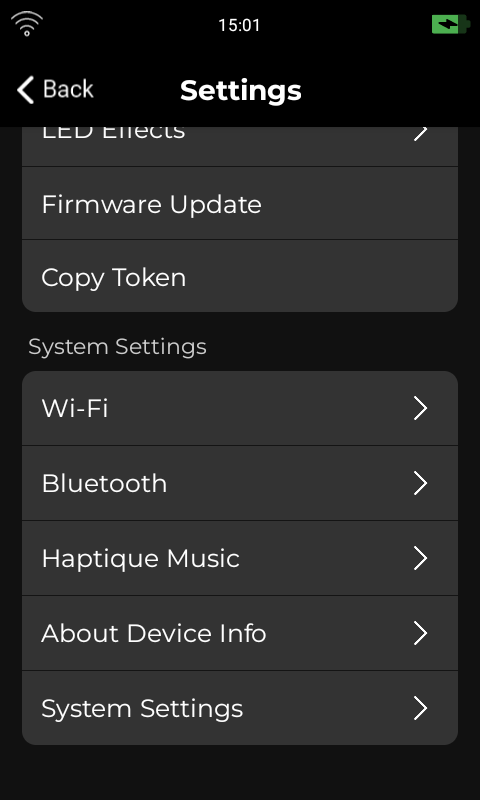
- When the Firmware Update pop-up appears on your controller, tap Now. You can also open it any time from Settings → Firmware Update.
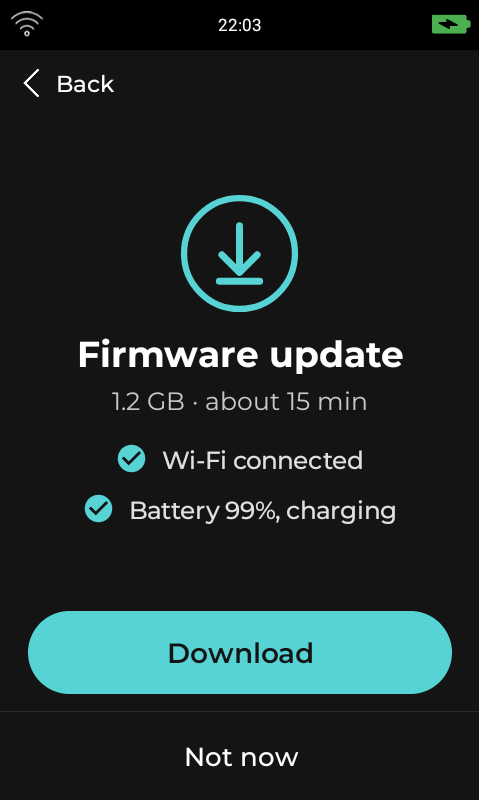
- The screen shows the download size and checks Wi-Fi and battery. Tap Download.
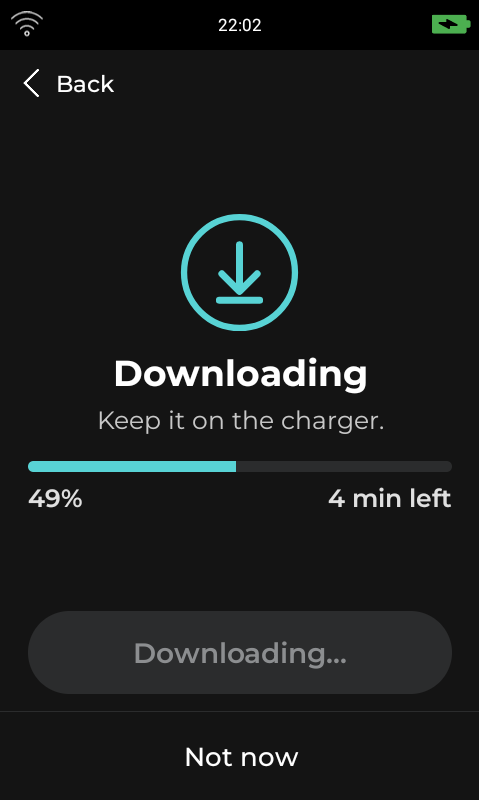
- Wait for the download to finish. It shows how many minutes are left. Keep your device on the charger and connected to Wi-Fi.
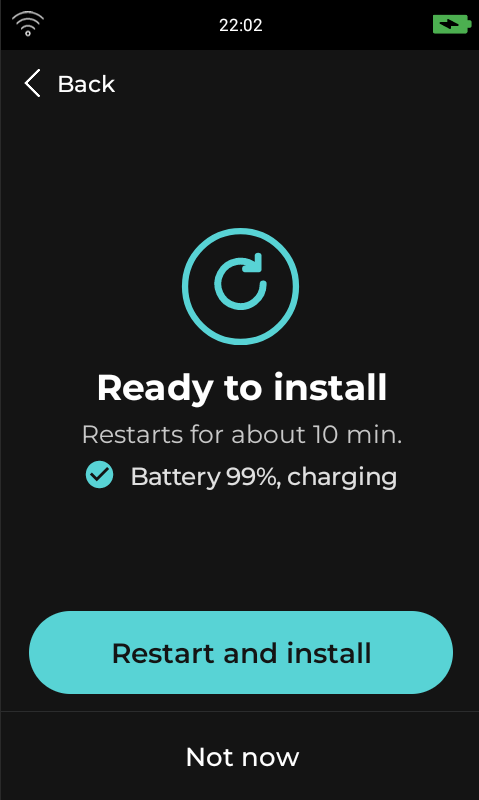
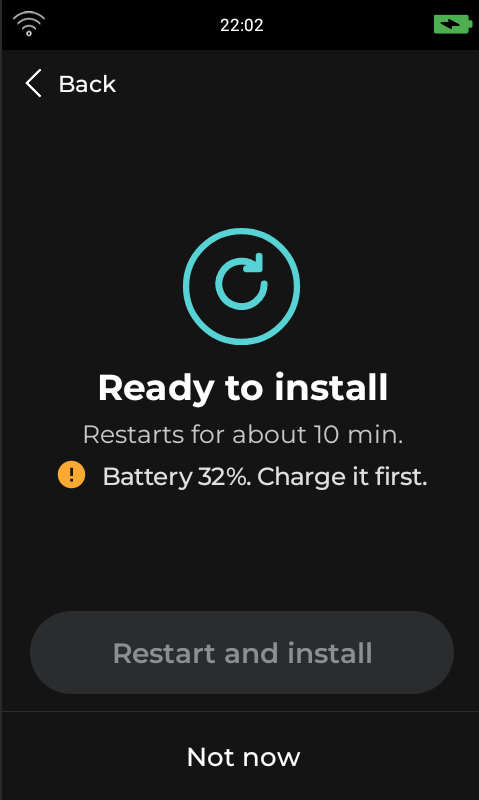
- When it says Ready to install, tap Restart and install.
If the battery is below 50% and not charging, the button is grey and the screen says Charge it first. Put the controller on its charger and the button turns on.
- The controller restarts and installs the firmware. Don’t press any keys or unplug it until the Haptique screen is back.
Typical duration: about 15 minutes to download on a good connection, then about 10 minutes to install. Your device will reboot and return to the Haptique UI.
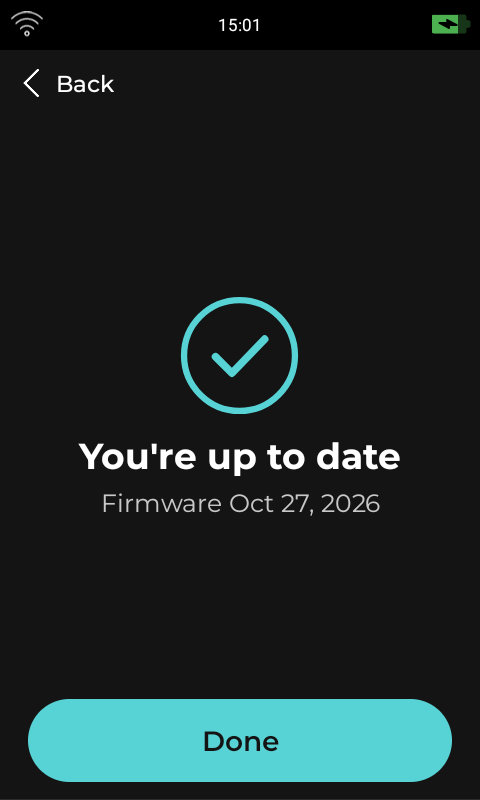
When it’s done, Settings → Firmware Update says You’re up to date.
The power-on key combinations for service modes now use +/− instead of ▲/▼. You only need these if our support team asks you to.
Applies to: Haptique RS90 (3GB version only)

