








Search for Solutions. Get Support.
- First time setup
- Button Mapping
- Link Multiple Haptique
- Roku
Use RS90 with Haptique OS
Updated 6 Jun, 2026AnnouncementHow to Use Haptique RS90 with Haptique OS Running Locally
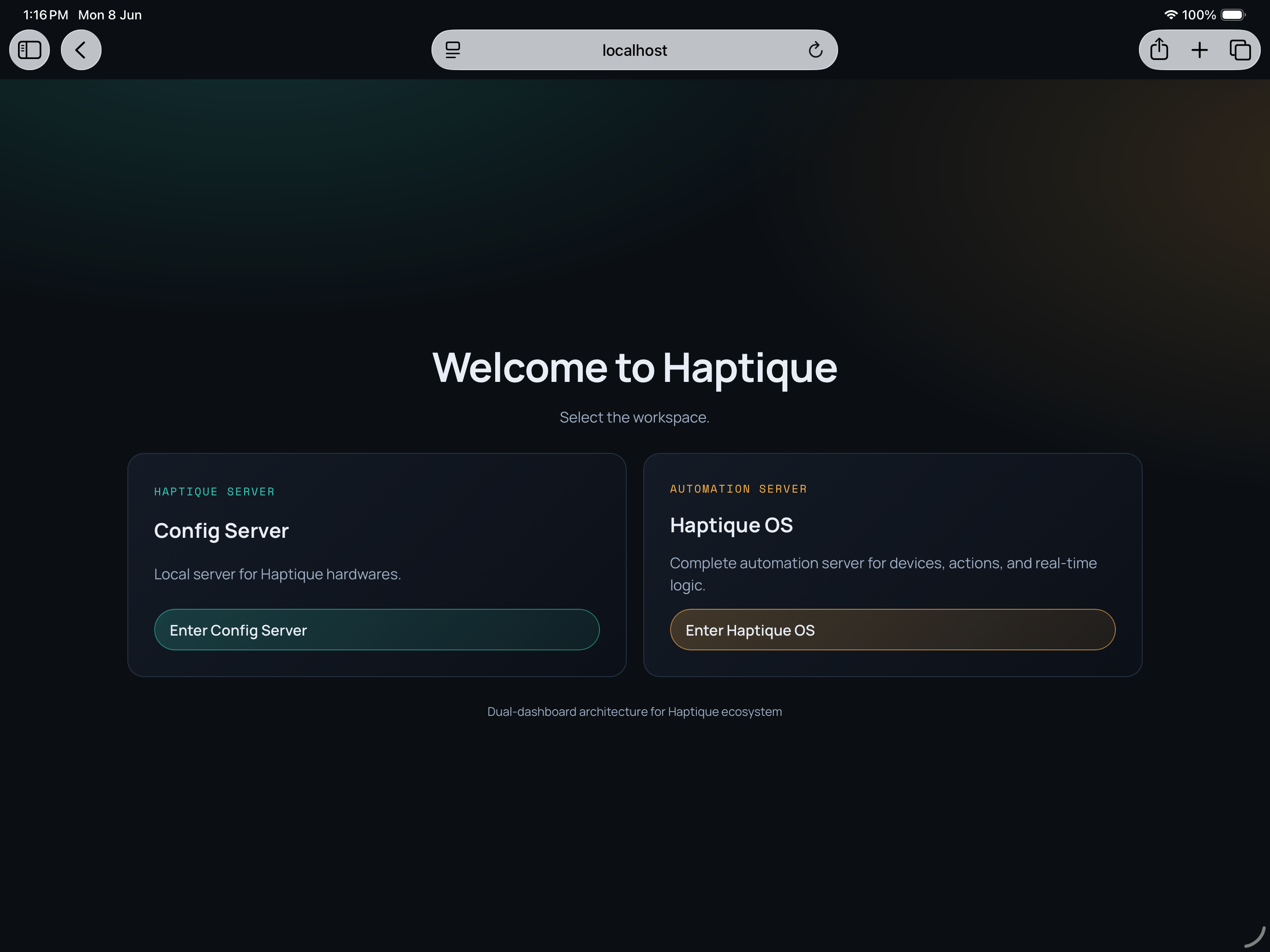
This guide is for existing RS90 users who want to use Haptique OS (HOS) on their own local network. After HOS is installed, switching your existing Haptique Config app and physical RS90 to the local server is a short process.
You do not need a HOS license just to connect the Config app and RS90 to a local HOS server. A license unlocks additional HOS features, but the basic local switch should feel familiar: change the server, sign in, and pair the remote.
Part 1: Switch in 3 Steps
1. Run HOS Locally
Install and open Haptique OS on a Mac, PC, mini PC, NAS, or always-on server on your home network. Use the packaged HOS app when available.
Find the HOS address:
http://192.168.1.50:8080(replace with your HOS machine IP)http://haptique-os.local:8080(if your network supports it)http://localhost:8080(from the HOS machine itself)
From your phone browser, open the HOS IP address once to confirm it loads. Check which port HOS loaded on before continuing. The RS90 Change Server screen adds port 8080 automatically, so keep HOS reachable on port 8080 for this RS90 setup flow. If HOS starts on another port, such as 8081, free port 8080 or configure HOS to use 8080 before pairing the RS90.
2. Switch the Config App
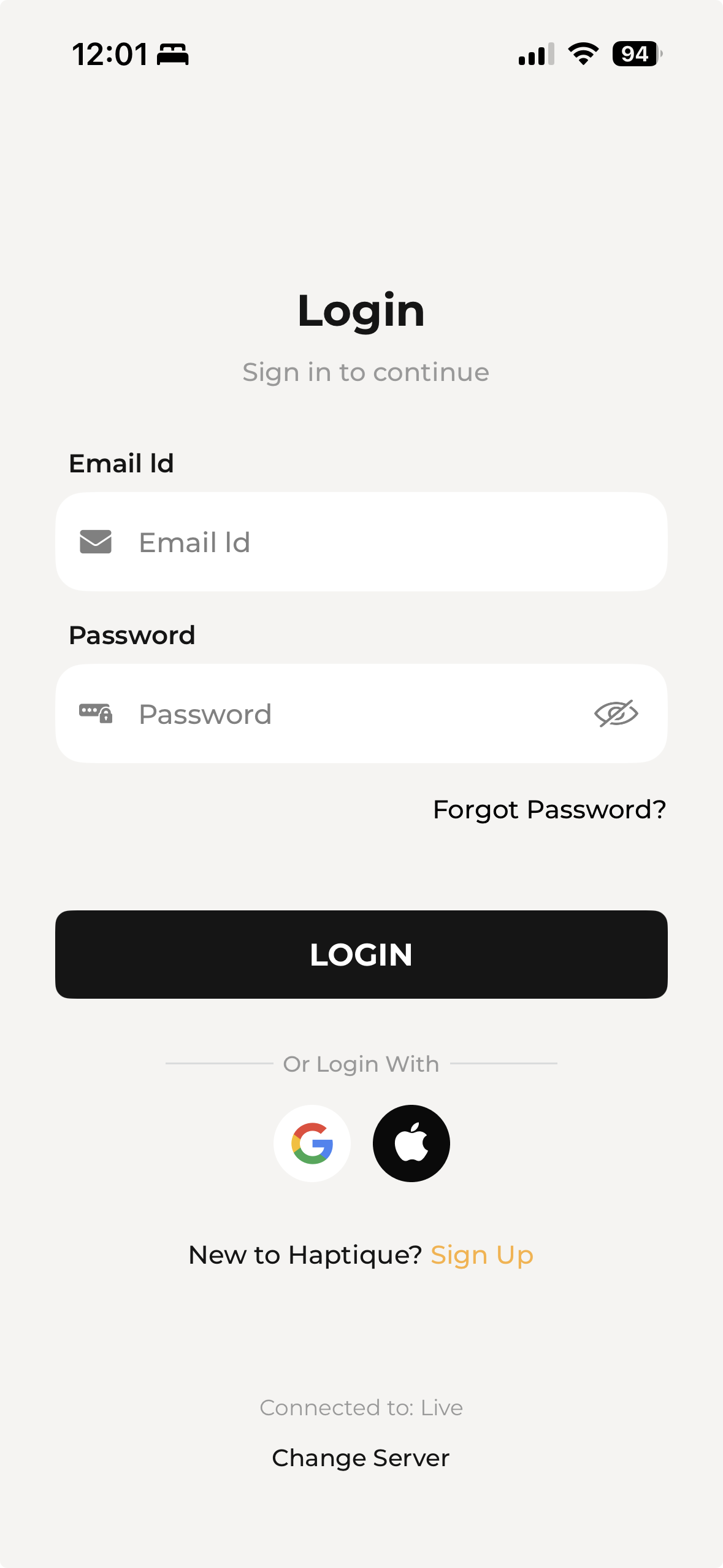
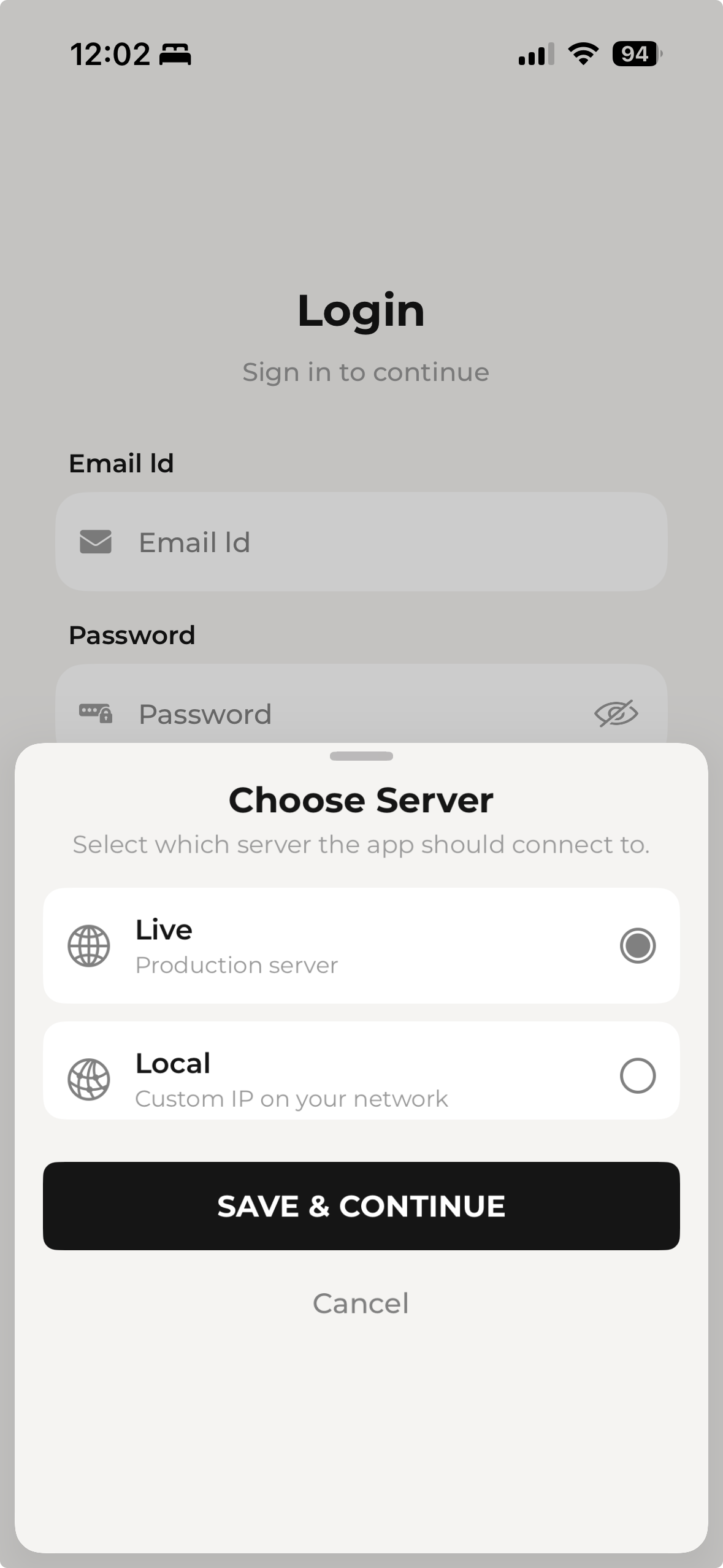
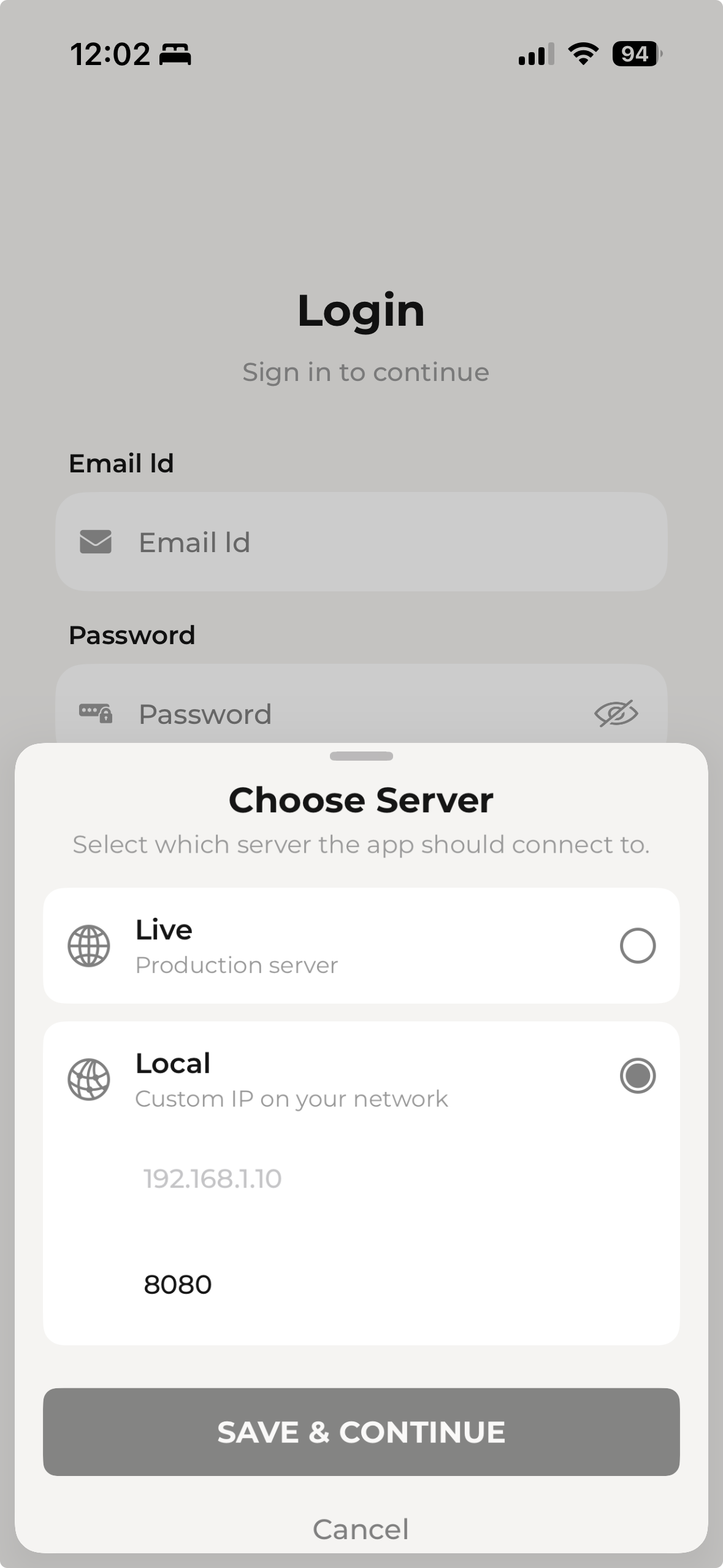
Open the same Haptique Config app you already use, then change the server to your HOS address.
- Tap the option to change server.
- Enter the HOS machine IP address in the IP address box, for example
192.168.1.50. - Keep the port as
8080for RS90 local pairing. - Create a local HOS account or sign in to an existing local HOS account.
3. Switch the RS90
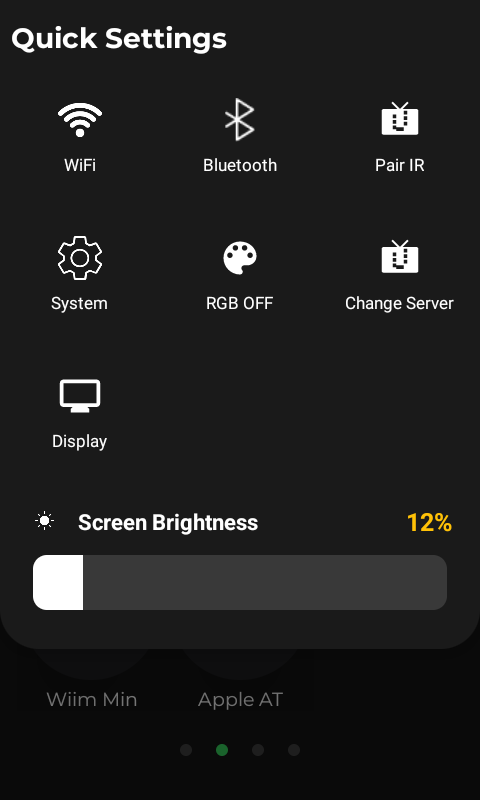
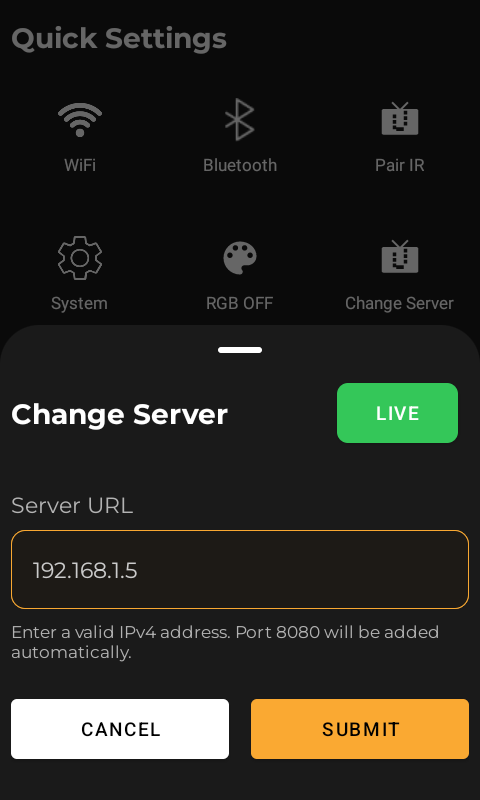
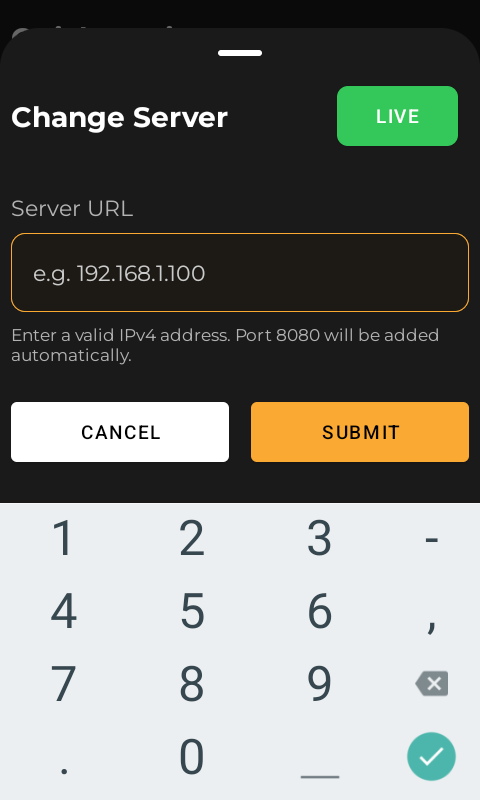
Point the physical RS90 to the same local HOS server, then pair it from the Config app.
- On the RS90 Quick Settings screen, tap Change Server.
- Enter only the HOS machine IPv4 address, for example
192.168.1.50. - Do not add
http://or a port. The RS90 adds port8080automatically. - Use the Config app to scan the RS90 QR code.
What HOS Adds
HOS improves the RS90 experience by moving more control work onto your local network. You can keep using the familiar RS90 and Config app while HOS handles local devices, local integrations, and faster on-network command routing.
| Area | Benefit |
|---|---|
| Local control | RS90 commands can stay on your LAN for supported local devices. |
| Speed | On-network command routing can reduce cloud round trips. |
| Integrations | HOS can run local drivers and expose compatible devices back to the RS90 flow. |
| Reliability | Supported local devices can keep working when internet access is limited. |
| Cloud choice | You can switch back to Fleet cloud later by changing the server again. |
Accounts and License
Local Account
The local HOS server has its own account database. Create the account from the mobile Config app or HOS dashboard after switching the app to the local server.
- Use email and password for local HOS.
- Use your Fleet account when the app is pointed to Fleet cloud.
- Do not expect Google, Apple, or other social login buttons to work against local HOS.
License
A license is not required just to point the RS90 and Config app at a local HOS instance. A license may unlock advanced HOS capabilities such as premium integrations, AI features, remote access, or other Pro features.
Keep It Reliable
Stable Address
Give the HOS machine a stable address so the RS90 and Config app do not lose it after a router restart.
- Reserve the HOS machine IP address in your router.
- Keep the HOS machine awake and on the same LAN as the RS90.
- Use Ethernet for the HOS machine when possible.
- Use the numeric IP address if
haptique-os.localdoes not resolve.
Offline Behavior
Local mode reduces cloud dependency, but not every feature is offline. Local device control can continue when the device integration is local. Internet services, remote access, updates, cloud AI, licensing checks, and cloud-only integrations may still need internet.
Advanced RS90 Use
This is optional. After the basic local switch is working, a licensed HOS controller can expose HOS-backed devices to the same Config App and RS90 experience.
Unlocked with HOS
HOS owns the device logic. RS90 gets the control surface.
- HOS devices can appear under the HOS category in My Devices.
- Favorites decide what appears quickly on RS90.
- Commands route back through the local HOS controller.
Fleet Release
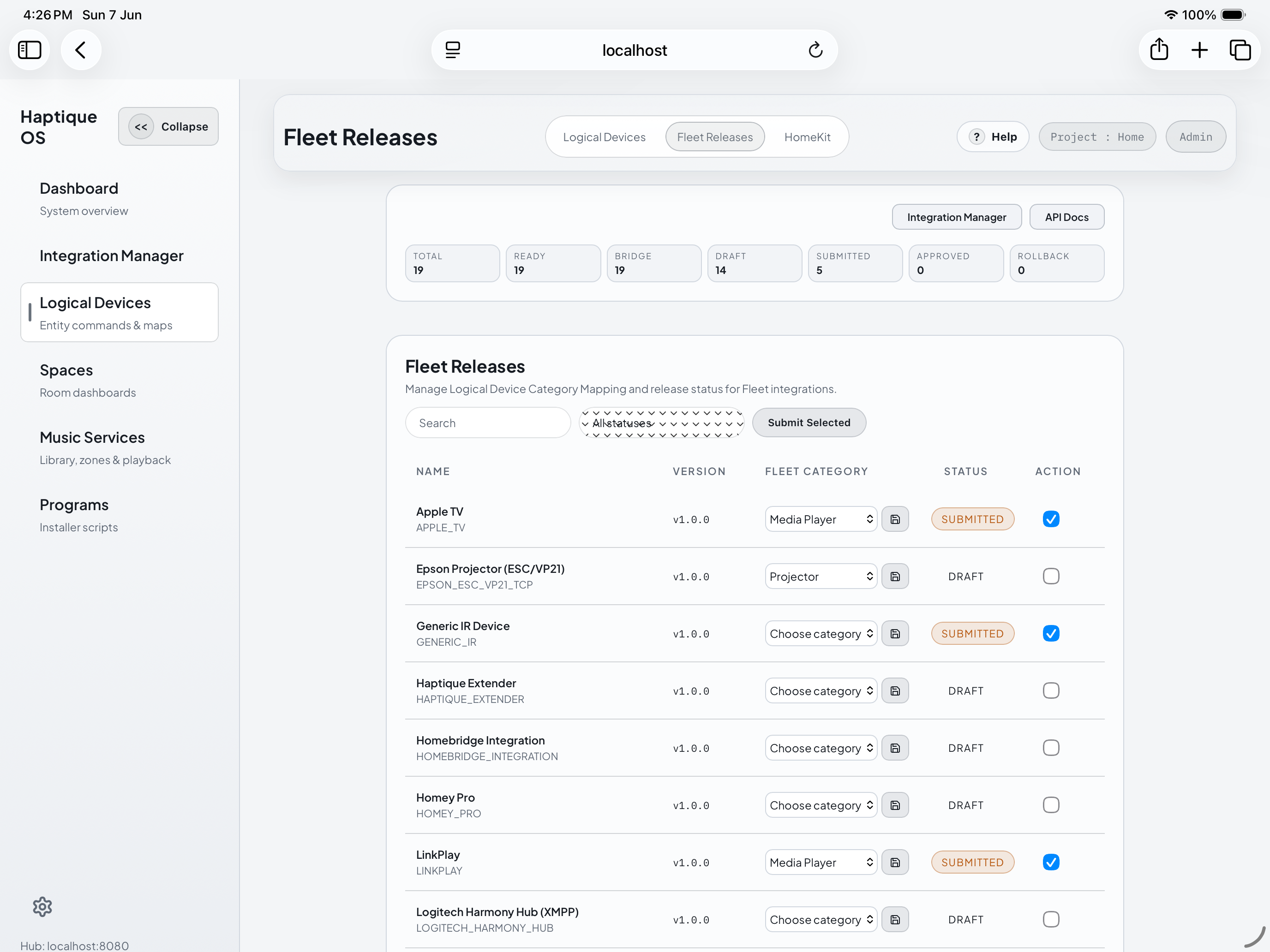
A Fleet Release decides which HOS Logical Devices become available to RS90. Keep the first release small: one room, a few proven devices, then expand after real RS90 control works. For more information, see haptique.io/docs.
- Select stable Logical Devices.
- Assign RS90-compatible categories.
- Submit or sync the release.
- Check My Devices → HOS in the Config App.
HOS Devices

After the release is synced, the exposed devices appear in the existing Config App under the HOS category.
- Open My Devices in the Config App.
- Tap the HOS category chip.
- Heart the devices you want close on RS90.
- Test each favorite from the physical remote.
Fleet and HOS Stay Separate
HOS local mode does not replace the Fleet cloud product. Fleet remains available for hosted deployments. HOS gives you a local controller path when you choose to run your own server.
Troubleshooting
Config app cannot reach HOS
- Use the same main Wi-Fi, not guest Wi-Fi or VPN.
- Open
http://YOUR-HOS-IP:8080on the phone. - Allow HOS through the macOS or Windows firewall.
RS90 QR pairing fails
- Use the same HOS IP in the Config app and RS90.
- Enter only the IPv4 address on RS90. Do not add
http://or a port. - Restart RS90 and scan a fresh QR code.
Command succeeds, device does nothing
- Test the same command in the HOS dashboard.
- Check the device IP, token, pairing state, or credentials.
- Confirm the RS90 command maps to a real HOS entity command.
Extender missing after switch
- Press the extender reset button 7 times.
- Add it again from the Config app on local HOS.
- Re-link the IR/RF devices that use the extender.
Security and Backup
Protect local HOS
- Use a strong local admin password.
- Do not expose port
8080directly to the internet. - Use official remote access instead of router port forwarding.
Backup checklist
- Back up users, rooms, devices, and favorites.
- Save driver credentials, macros, and sequences.
- Keep license or activation files, if applicable.

