








Search for Solutions. Get Support.
- First time setup
- Button Mapping
- Link Multiple Haptique
- Roku
Roon Integration: Your Music, at Your Fingertips on Haptique RS90
Updated 15 Oct, 2026IntegrationsBring your Roon listening experience to your Haptique RS90. Browse music, see what is playing and control your selected listening zone from the remote you already use for the rest of your system.
The integration connects to your existing Roon Server and audio zones. Music continues playing through your Roon audio system; the RS90 gives you a convenient way to choose and control it.
Before you begin
- A working Roon system, with Roon Server running and at least one audio zone available.
- An RS90 linked to your Haptique account, online and running software with Roon support.
- The RS90 and Roon Server on the same local network. A wired Roon Server and a Wi-Fi RS90 can work together on that network.
- The Roon app on a computer, tablet or phone, ready to approve the Haptique connection.
Check that you can play music to your chosen zone from the Roon app before starting.
1. Open Roon setup
Sign in to the Haptique web configurator, open Add Device and select Roon. Choose the Haptique remote you want to configure.
The selected RS90 discovers Roon on its local network, so keep it awake and connected during setup.
2. Discover your Roon Server
Use Auto mode and select Discover. Choose your server from the Roon Core list. “Core” is the term used in this setup screen for your Roon Server.
If you have more than one server, select the one that manages the music and listening zones you want to use.
3. Allow Haptique in Roon
Select Authorize in the Haptique setup page. Then open the Roon app and go to Settings → Extensions. Find Haptique RS90 and select Enable.
Return to the configurator and allow the connection to complete. If setup expires while you are approving it, try Authorize again. If you previously revoked Haptique access, enable it again in Roon.
4. Choose your zone and volume output
Once authorized, choose a Zone, such as Living Room or Listening Room. This is where your music will play.
Then choose the Volume output you want the remote to control. This matters when a zone contains more than one output. You can choose No volume output if you do not want to assign one here.
Volume and mute controls depend on what the chosen output supports. An output configured with fixed volume may not offer adjustable volume through Roon.
Give the connection a recognizable name, such as “Living Room Roon,” and select Save.
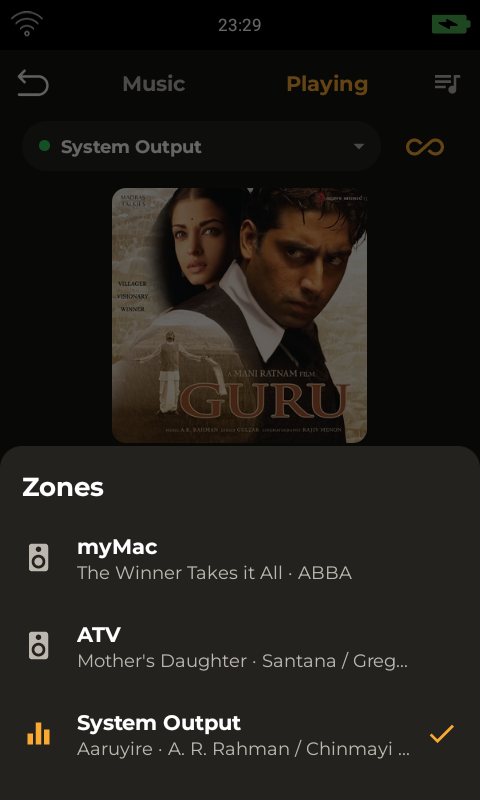
The Zones screen shows the listening zones available from your Roon Server. The highlighted row marks the current zone.
5. Sync and start listening
Refresh or sync your RS90 configuration, then open the saved Roon device on the remote. If the connection screen asks for authorization, follow its instructions to enable Haptique RS90 in Roon.
On compatible RS90 software, you can:
- Browse music: explore albums, artists, playlists and search results available through your Roon library.
- Start playback: choose a song to play in the configured zone.
- See what is playing: view track information and artwork.
- Control listening: play, pause, skip and adjust volume where supported.
- View Up next: see the playback queue.
The available music and actions depend on your Roon library, connected services and software version. If your connection is assigned to a specific zone, change that assignment in the configurator when you want to use a different one.
Roon on your RS90
Browse albums, artists, songs and playlists from Music, then switch to Playing for artwork, playback and volume controls.
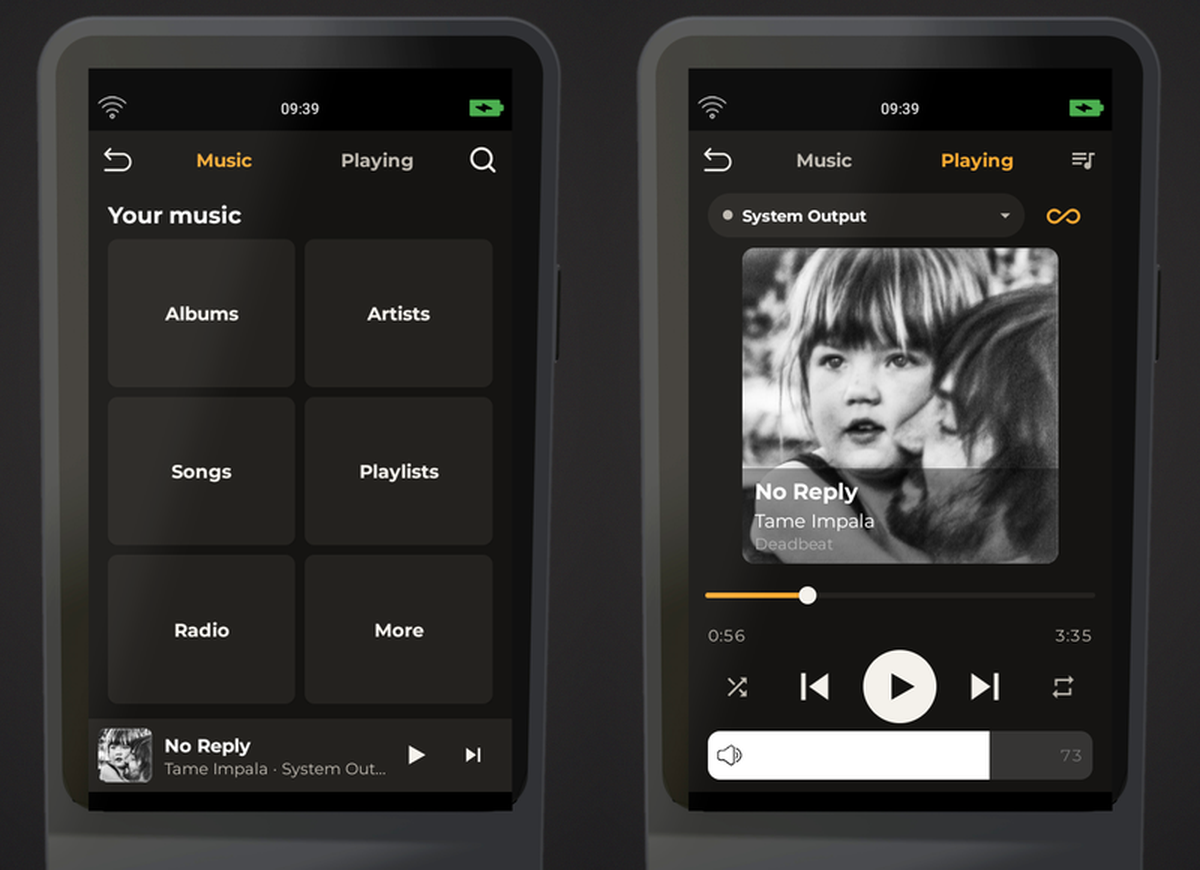
Music browsing and playback on Haptique RS90.
Manual connection
If automatic discovery does not find your server, select Manual. Choose your RS90, enter the Roon Server's local IP address, add a name and save. The port field is optional; leave it on Auto unless you know the server's port.
Sync the remote and complete Roon authorization on the RS90. Saving an IP address does not bypass the approval step in Roon.
Troubleshooting
No server found: confirm that Roon Server is running and the RS90 can reach it on the local network. Guest Wi-Fi or network isolation can prevent discovery. Retry Discover after reconnecting.
Waiting for authorization: open Roon → Settings → Extensions and enable Haptique RS90. Keep the remote online, then retry authorization if needed.
No zones available: first check your audio devices in Roon. Use Roon's Audio Setup guide if needed, then refresh the zone list in Haptique.
Playback works, but volume does not: check the selected Volume output and whether that output supports volume adjustment.
Connection lost: confirm that the server and remote are online. If access was revoked, enable the extension again. Use Reconfigure under Saved connections if the zone or output has changed.
Roon setup unavailable: your remote software or selected Haptique server may need an update with Roon support. Contact Haptique Support with your RS90 app version and the message shown on screen.

