






Search for Solutions. Get Support.
- First time setup
- Button Mapping
- Link Multiple Haptique
- Roku
Frequently Asked Questions
Yes, Haptique RS90 works via Alexa controlling it. Look for Haptique RS90 skills in Alexa app.
Opus 1 is a new easier way to navigate Haptique. We have removed rooms so you can directly handle devices and Macros on the dedicated Home Screen. Only favourite devices will display on OPUS 1.
Post update to OPUS 1, only Devices and Macros which are favourite will display on the Haptique. So just change your Devices you want to have on Haptique to favourite by going to Device pool or Sequence list. Click on "heart" icon next to device or Sequence name in Haptique config app and sync Haptique to get your selected favourite Devices or Macros.
Yes now we have this feature available on mobile app.
With IR+RF Hub pro which now supports Infrared and RF new remote reading, you can add codes to your account. Also you can add codes manually via login to support.haptique.io and adding via manual code editor here: https://support.haptique.io/en/ir-database if you have Pronto Hex or Raw code Infrared.
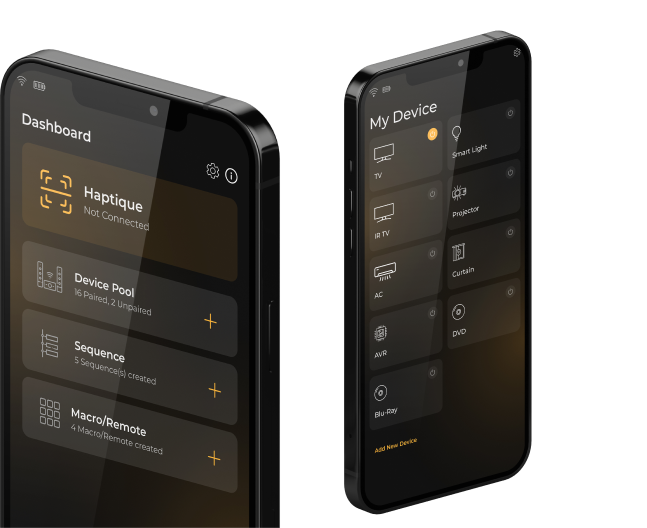
Get the app from the Google Play Store or Apple App Store on your smartphone. Open the app and tap on the “Register” link to sign up for a Haptique® account. Your Haptique® account save all the devices, rooms and Macro created for your Haptique® controller.
Haptique® Mobile App
Personalize and configure your remote interface through our cutting-edge mobile application.


Haptique Products